
Gaming on a PC has always been about performance, visuals, and flexibility — and with Windows 11 PC gaming, Microsoft has introduced several improvements designed specifically for gamers. Windows 11 takes what was great about Windows 10 and adds technologies that enhance load speeds, graphics quality, system responsiveness, and game support.
Why Windows 11 is a Game‑Changer for Gamers
Windows 11 was built with modern hardware in mind. One of its core goals is to reduce the barriers between your hardware and the game software. Features like DirectStorage help reduce game load times, while Auto HDR improves color and contrast automatically on supported displays. These improvements mean that games feel more responsive and visually richer right out of the box.
Differences Between Windows 10 and Windows 11 for Gaming
Although Windows 10 was a solid gaming platform, Windows 11 PC Gaming introduces features that were previously unavailable or limited. Key differences include:
- DirectStorage: Accelerates loading by optimizing how data moves from SSDs to the graphics subsystem.
- Auto HDR: Enhances visuals by improving dynamic range in games without manual configuration.
- Improved Game Mode: Better prioritization of gaming workloads to reduce interruptions from background tasks.
Windows 11 PC Gaming Features You Should Know
DirectStorage changes how game files are transferred from storage to the graphics card. Traditional systems often bottleneck because the CPU becomes involved in every step of the process, slowing down game load times. DirectStorage bypasses that by allowing storage drives, especially high‑speed NVMe SSDs, to send data directly to the GPU. The result is smoother play with much faster loading screens.
Auto HDR: Enhanced Visuals in Games
High Dynamic Range (HDR) displays can show a wider range of brightness and color than standard displays. Auto HDR automatically upgrades games that weren’t built with HDR in mind so they look better on HDR monitors or TVs. The benefits include more vibrant colors, richer shadow details, and better visual depth without manual configuration for each game.
Xbox Game Pass and Cloud Gaming Integration
Windows 11 PC Gaming includes the Xbox app, giving you access to Xbox Game Pass — a subscription service with hundreds of games you can download or stream. Cloud gaming lets you play titles without installing them locally, which is especially helpful if your system has limited storage or you want to try games before downloading them.
Game Mode: Boosting Performance
Game Mode is a setting that tells Windows to focus system resources on the game you’re playing. It limits background tasks, reduces unnecessary interruptions, and optimizes CPU and GPU use so that games run more consistently. This is especially beneficial on systems that are not high‑end, as it helps maintain playable frame rates in demanding titles.
Minimum & Recommended System Requirements
To enjoy Windows 11 PC gaming, your system must meet basic Windows 11 requirements: a compatible 64‑bit processor, at least 4GB of RAM, and graphics hardware that supports DirectX 12 or later. However, for good gaming performance, especially in modern titles, the following specifications are recommended:
- CPU: A current‑generation mid‑range or higher processor
- GPU: A graphics card capable of DirectX 12 performance
- RAM: 16GB or more
- Storage: A fast NVMe SSD
TPM 2.0 and Secure Boot Requirements
Windows 11 PC Gaming introduces security features like TPM 2.0 and Secure Boot as installation requirements. TPM (Trusted Platform Module) helps secure encryption keys and passwords, while Secure Boot prevents unauthorized software from loading during startup.
How Requirements Affect Game Performance
Meeting Windows 11’s minimum requirements allows the OS to run, but for games to run well, you need stronger hardware. A fast CPU improves game logic and physics calculations, a powerful GPU renders graphics efficiently, and plenty of RAM helps with multitasking and running modern game engines.
Best Windows 11 PC Gaming Setup
Your choice of hardware greatly influences how well games perform on Windows 11:
- 1080p Gaming: Mid‑range graphics cards and CPUs deliver smooth gameplay at high settings.
- 1440p Gaming: A stronger GPU paired with a capable CPU gives excellent visuals and high frame rates.
- 4K Gaming: High‑end GPUs and powerful processors are needed to push demanding games at native 4K resolution.
Best Peripherals: Monitors, Keyboards, and Mice
Peripherals matter just as much as internal components. A high refresh rate monitor (such as 144Hz or higher) makes motion appear smoother. A gaming keyboard with programmable keys and a responsive gaming mouse with adjustable DPI settings improve control and responsiveness, which are especially important in competitive games.
Storage Options: SSDs vs HDDs for Gaming
SSD storage, especially NVMe SSDs, offers dramatically faster load times than traditional HDDs. This speed is beneficial for reducing game startup delays and supporting newer technologies like DirectStorage. HDDs still serve well for mass storage of large game libraries but are not ideal for performance‑critical installs.
Tips to Optimize Windows 11 PC Gaming
- Enable Gaming Mode for Maximum FPS: Turning on Game Mode in Windows 11 helps allocate more system resources to your active game, reducing interruptions from background processes.
- Update Drivers and Windows Regularly: Frequent driver updates from GPU manufacturers (NVIDIA, AMD, Intel) include performance improvements and game optimizations. Keeping Windows 11 PC Gaming updated also ensures you have the latest system enhancements.
- Disable Background Apps to Reduce Lag: Closing unused apps frees up memory and processor cycles. Background programs can consume resources your game could use instead, especially on systems that aren’t top‑tier.
- Overclocking Tips for Better Performance: Overclocking your CPU or GPU can give you extra performance, but it must be approached cautiously. Good cooling, careful voltage adjustments, and gradual frequency increases can improve performance.
Top Games That Run Best on Windows 11 PC Gaming
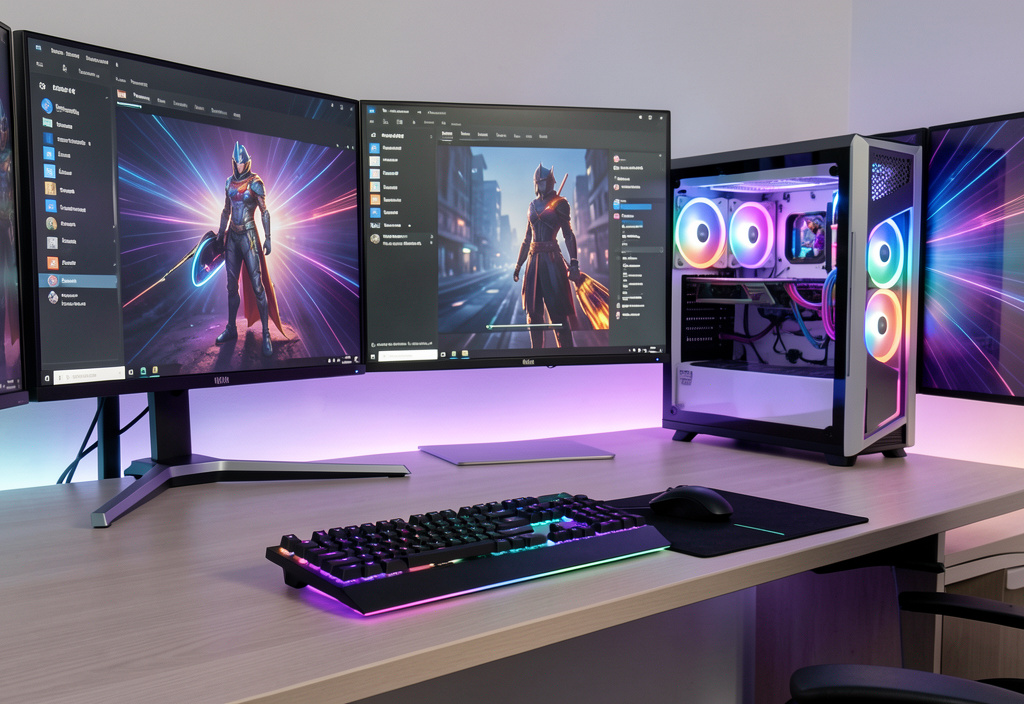
- High‑Performance FPS Games: Games that rely on quick reflexes and high frame rates — such as popular first‑person shooters — benefit from the performance optimizations in Windows 11. Fast responsiveness and smooth rendering are especially noticeable in competitive titles.
- AAA Open‑World Games: Large, open‑world games have dynamic environments and detailed worlds that load assets constantly. Fast storage and features like DirectStorage reduce load times and stutter during gameplay, making exploration smoother.
- Multiplayer Games That Benefit from Windows 11 Features: Multiplayer games greatly benefit from consistent frame rates and minimal input lag. With Game Mode and system optimizations, Windows 11 helps maintain stable performance in online matches.
Troubleshooting Common Windows 11 Gaming Issues
- Lag, Stuttering, and Low FPS Fixes: If a game feels slow or choppy, enabling Game Mode, updating drivers, and closing unnecessary background tasks can help.
- Game Crashes and Freezing Solutions: Crashes and freezes can stem from outdated drivers, corrupted game files, or overheating hardware.
- Driver and Compatibility Issues: Older games may not fully support newer hardware or OS features. Running games in compatibility mode or adjusting settings can help stabilize performance.
Wrapping up
Windows 11 PC gaming brings meaningful improvements to how games load, look, and perform. With features like DirectStorage, Auto HDR, Game Mode, and deep Xbox integration, Windows 11 offers a modern, optimized platform for both casual and competitive gamers. By choosing the right hardware, enabling performance features, and keeping your system optimized.