
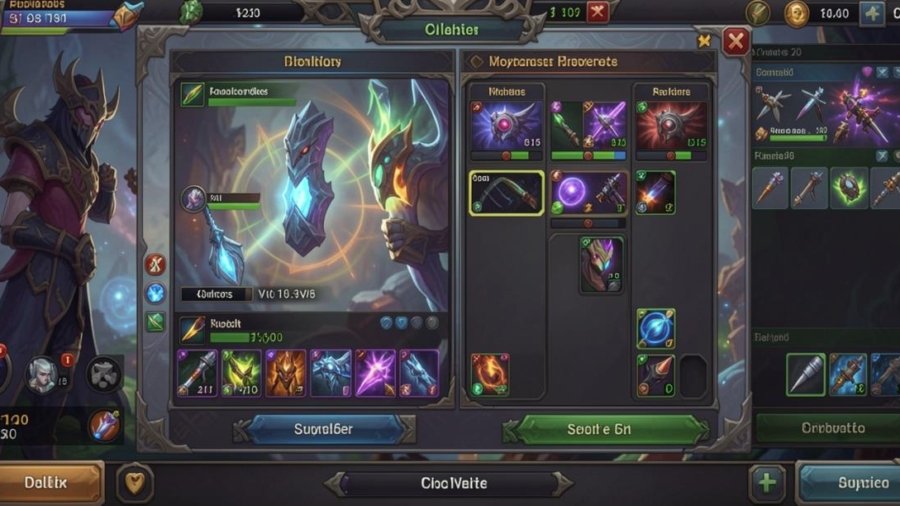
Game UI, or Game User Interface, is more than just buttons and menus. It’s the invisible bridge between players and gameplay. A well-designed it not only displays critical information but also enhances immersion, guiding players seamlessly through challenges, menus, and interactions. Modern games face increasing complexity—players now expect accessible interfaces, responsive controls, and visually pleasing layouts.
Why Game UI is Crucial for Player Experience
The player experience begins the moment they start interacting with a game. It plays a vital role in that interaction. It affects how quickly players learn controls, track objectives, and respond to challenges.
Good it helps:
- Provide immediate clarity on objectives and stats
- Enhance immersion by seamlessly blending into the game world
- Reduce mistakes, misclicks, or confusion during fast-paced gameplay
- Improve overall player retention and satisfaction
How a Great UI Can Make or Break Your Game
Even a game with amazing visuals and storylines can fail if the UI frustrates players. Imagine a fantasy RPG where your health bar is hidden behind bright scenery, or a mobile game where buttons are too small to tap. Poor UI creates frustration, while excellent UI allows players to focus entirely on gameplay.
What is Game UI?
It refers to the visual and interactive elements players use to control and monitor a game. This includes everything from health bars and score displays to buttons, menus, and notifications. Unlike traditional software UI, it must respond dynamically to fast-changing environments, player actions, and game mechanics.
GameUI vs Game UX: Understanding the Difference
It’s important to distinguish between UI and UX in games:
- GameUI (User Interface): Visual elements the player interacts with, such as menus, icons, and HUDs.
- Game UX (User Experience): The player’s emotional and functional experience interacting with those UI elements.
Types of GameUI: HUD, Menus, and Controls
It elements are generally divided into several types:
- HUD (Heads-Up Display): Provides continuous access to essential information like health, ammo, and minimaps.
- Menus and Navigation Screens: Include settings, inventories, pause screens, and other navigational tools.
- Buttons & Controls: Interactive elements that allow players to perform actions such as jumping, attacking, or interacting with the environment.
Key Principles of Effective Game UI
Designing a great it requires adherence to foundational principles that keep interfaces intuitive and player-friendly.
Clarity: Making Information Easy to Read
Clarity means presenting information in a way that is instantly understandable. Use legible fonts, distinguishable icons, and color contrast that aligns with the game’s visual style. Players should grasp critical stats or actions without pausing the gameplay to decode information.
Consistency: Keeping Your UI Unified
Consistency involves using the same visual language, layouts, and interaction patterns throughout the Game UI. Predictable interfaces reduce cognitive load and help players learn the controls faster. Consistency also builds familiarity, improving overall usability.
Feedback: Showing Players Their Actions Worked
Feedback is vital in confirming player actions. This can include visual cues like button highlights, auditory signals, or small animations. Immediate feedback reassures players that their input has been recognized, which is essential in high-speed or precision gameplay.
Accessibility: Designing for All Players
Accessibility ensures the game can be enjoyed by everyone. Consider colorblind-friendly palettes, scalable text, and alternative control schemes. Designing for accessibility not only broadens your audience but also improves the overall player experience.
Common Game UI Elements
HUDs provide ongoing information without obstructing gameplay. Designers must balance visibility with subtlety—too small and it’s hard to see, too big and it distracts from the action.
Menus and Navigation Screens
Menus organize the game’s secondary systems. Players should be able to access inventory, settings, and stats with minimal friction. Logical grouping and intuitive navigation are key.
Buttons, Sliders, and Interactive Controls
Interactive elements must respond accurately and quickly. Game UI proper spacing, sizing, and feedback are critical, especially for mobile or touchscreen devices.
Pop-Ups and Notifications
Pop-ups communicate vital messages like achievements, quest updates, or in-game warnings. Timing and design matter—players should notice them without feeling interrupted.
Game UI Design Tips for Beginners
- Keep It Simple and Intuitive: Focus on essential elements and avoid clutter. Players should understand controls at a glance without needing tutorials for basic actions.
- Prioritize Important Information: Critical information should be displayed prominently. Less urgent data can appear only when needed or be hidden in expandable menus.
- Use Colors, Fonts, and Icons Wisely: Colors and icons convey meaning and hierarchy. Use consistent color coding, readable fonts, and universally recognizable symbols to enhance clarity.
- Test and Iterate with Real Players: Player testing is invaluable. Observing how users interact with your UI identifies confusion points and areas for improvement.
Tools & Software for Game UI Design
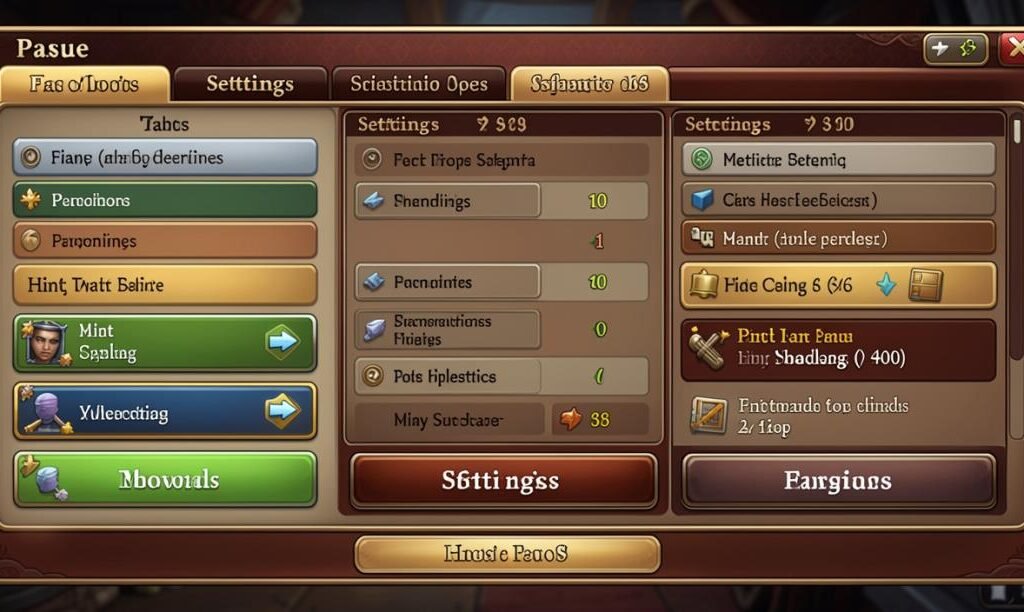
- Figma, Adobe XD, and Photoshop: These tools help designers create mockups, prototypes, and visual assets. Figma and XD are excellent for collaborative design and rapid iteration.
- Unity & Unreal Engine UI Tools: These engines provide native UI systems for implementing HUDs, menus, and interactive elements directly in-game. Designers can test UI in the context of actual gameplay.
- Useful Plugins and Assets: Plugins like button packs, HUD templates, and animation tools accelerate development while ensuring polished results. Prebuilt assets save time and maintain consistency.
Examples of Great Game UI
- Case Study: Popular Console Game: The Witcher 3’s HUD is elegant and unobtrusive. Health bars, maps, and quest indicators are clear but don’t obstruct gameplay, balancing immersion with functionality.
- Case Study: Mobile Game: Clash Royale’s UI is designed for touch controls. Large buttons, simple menus, and visual cues allow fast, precise interactions on small screens.
- Lessons You Can Apply: Key lessons include emphasizing critical information, maintaining visual consistency, and designing UI tailored to the platform and input method.
Common Mistakes to Avoid
- Overcrowded Screens: Too many elements overwhelm players. Simplify by prioritizing essential information and hiding non-critical details.
- Poorly Placed Buttons or Controls: Controls must be logically positioned and sized for easy interaction. Poor placement leads to misclicks and frustration.
- Ignoring Accessibility and Player Feedback: Ignoring accessibility or failing to incorporate player feedback limits audience reach and can frustrate users. Inclusive design improves engagement for everyone.
Final Thoughts
Creating Game UI that players love requires clarity, consistency, feedback, and accessibility. A thoughtfully designed interface guides players, reduces frustration, and enhances immersion. By testing with real users and iterating based on feedback, you can craft a UI that not only functions well but also elevates the overall gaming experience.